The Activation Window
The Activation window enables users to enter the activation key. The activation key is provided to the small business once they have purchased the application. An email is sent to the address provided during registration, once the purchase has been confirmed. Optionally, the product may be used in demo-mode via the activation screen and may be used for 14 days before the user is required to utilize their activation key.
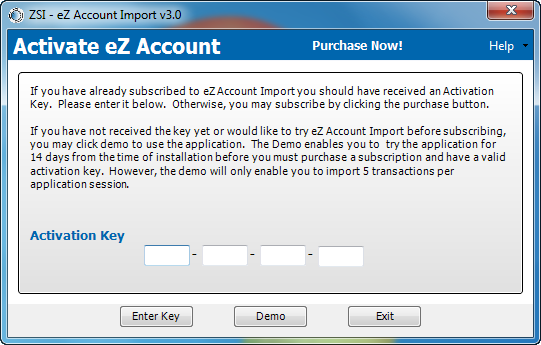
Figure 1: Activation window
Elements of Window
The window contains the following elements:
|
Element |
Description |
|
Purchase Now! button |
To purchase eZ Account Import, click Purchase Now! Once clicked, a browser window is launched and the Purchasing page of eZ Account Import is opened. Payment is handled via PayPal, the leading internet payment provider. |
|
Activation Key fields |
16 character key that unlocks eZ Account Import for unlimited uses during an annual subscription. |
|
Enter Key button |
Validates the Activation Key for the application. |
|
Demo button |
Validates the time left on the demo and enables access to eZ Account Import. |
|
Exit button |
Exits eZ Account Import. |
|
Help menu drop-down list |
Display a selection of options for specific help information. |
|
Help Home |
Opens a browser and navigates to online help for eZ Account Import. |
|
About this Window |
Opens a browser and navigates to online help for the Activation window. |
|
How Do I |
Opens a browser and navigates to the “How to…” section of online help. |
|
Registration Information |
Opens the Registration window and shows details on application registration. |
|
Audit Log |
Opens the Audit Log window and displays the last 30 days of activities. |
|
About Zachary Systems |
Opens a browser and navigates to Zachary Systems Home page. |
 Associated Documentation: