The Select Import Information Window
The Select Import Information window enables you to:
Select the online banking download file for importing.
Select the QuickBooks® Account for import.
To select an online credit card download file, the Select File button must be clicked. A File Selection window opens enabling the online credit card download file to be located and selected. The window will only display: Comma Separated Values (.CSV), .QIF, Quicken (.QFX), Microsoft Money (.OFX), Excel (.XLS or .XLSX) and QuickBooks (.QBO) file formats.
The QuickBooks® Account is populated with the credit card accounts associated with the opened QuickBooks® company file. By selecting the drop-down list, all accounts associated with the company will display.
When the Review Transactions button is clicked, three events occur:
eZ Account Import.
eZ Account Import. If the transaction description from the export file matches an alias description, than the payee and account are pre-populated for the transaction based upon the alias data.
® register for the account selected is read and compared to the transactions. Any QuickBooks® transaction with the same amount, within three weeks (configurable in preferences) of export file transaction is marked as a Matched transaction.
Once these actions are complete, the Import Transactions window opens populated with all of the transactions from the download file and the QuickBooks® transactions for the same period of time.
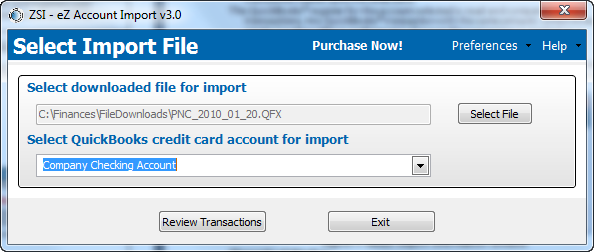
Figure 7: Select Import Information window
Elements of Window
The window contains the following elements:
|
Element |
Description |
|
Select downloaded file for import field |
Shows the selected file and the files path. |
|
Select File button |
Opens a file selection dialog box for navigating to the location and selecting the online credit card download file. |
|
Select QuickBooks® credit card account for import drop-down list |
Allows the selection of the QuickBooks® Credit Card Account to import the transactions. |
|
Preferences menu drop-dwn list |
Shows a dropdown of buttons for setting preferences. |
|
Configuration |
Displays the Preferences window for configuring the eZ Account Import. Configuration parameters include enabling classes, allowing transactions to be assigned to customers, etc. |
|
Aliases |
Displays the Aliases window for creating, editing and deleting Aliases. |
|
Review Transactions button |
Reads online credit card download file and then displays the Import Transactions window. |
|
Exit button |
Exits eZ Account Import application. |
|
Help menu drop-down list |
Display a selection of options for specific help information. |
|
Help Home |
Opens a browser and navigates to online help for eZ Account Import. |
|
About this Window |
Opens a browser and navigates to online help for the Select Download File window. |
|
How Do I |
Opens a browser and navigates to the “How to…” section of online help. |
|
Registration Information |
Opens the Registration window and shows details on application registration. |
|
Audit Log |
Opens the Audit Log window and displays the last 30 days of activities. |
|
About Zachary Systems |
Opens a browser and navigates to Zachary Systems Home page. |
 Associated Documentation: