The Add QuickBooks® Vendor or Customer Window
The Add QuickBooks® Vendor or Customer window enables users to add a new vendor or customer to QuickBooks®. Optionally, users may add an alias while adding a new vendor.
The Add QuickBooks® Vendor or Customer window is accessed from the Import Transactions window via the context menu for the Import Transactions Table. Access the context menu by right-clicking on any transaction where you would like to create a new vendor.
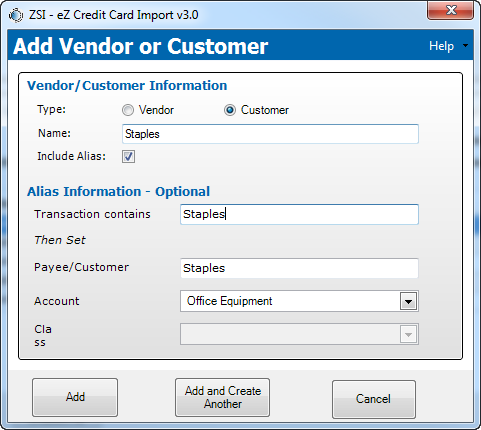
Figure 2: Add QuickBooks® Vendor or Customer window
Elements of Window
The window contains the following elements:
|
Element |
Description |
|
Vendor / Customer Information |
|
|
Type radio button |
Select whether a vendor or customer is to be created in QuickBooks®. |
|
Name field |
Name of the Vendor or Customer. |
|
Include Alias checkbox |
Indicates whether an alias should be created in eZ Credit Card Import as well as the vendor/customer. |
|
Alias Information – Optional |
|
|
Transaction contains field |
Keyswords to use when matching the transaction descriptions. For multiple keywords, separate with commas. For example, “Lowes, Ashburn” will match any transaction containing both the word Lowes and Ashburn. |
|
Payee/Customer field |
Is set to the Name of the vendor you are creating. |
|
Account drop-down |
Drop-down list of accounts available in QuickBooks®. |
|
Class drop-down |
Enables the setting of the class for the Alias if classes are enabled in Preferences. |
|
Add button |
Adds the Vendor / Customer to QuickBooks®, creates the Alias if selected and closes the window. |
|
Add and Create Another button |
Adds the Vendor / Customer to QuickBooks, creates the Alias if selected and clears the window for creating another Vendor/Customer. |
|
Cancel button |
Cancels the adding of a vendor/customer and closes the window. |
|
Help menu drop-down list |
Display a selection of options for specific help information. |
|
Help Home |
Opens a browser and navigates to online help for eZ Credit Card Import. |
|
About this Window |
Opens a browser and navigates to online help for the Alias window. |
|
How Do I |
Opens a browser and navigates to the “How to…” section of online help. |
|
Registration Information |
Opens the Registration window and shows details on application registration. |
|
Audit Log |
Opens the Audit Log window and displays the last 30 days of activities. |
|
About Zachary Systems |
Opens a browser and navigates to Zachary Systems Home page. |
 Associated Documentation: