The Aliases Window
The Aliases window enables users to create set of “aliases.” Aliases are payees, accounts, classes and customer/jobs that are pre-defined (note: Classes and Customer/Jobs need to be enabled in Preferences). Therefore, when eZ Credit Card Import reads an online credit card export file and an alias is encountered, a pre-defined payee, account, class and customer/job is automatically pre-populated in the Import Transactions window. In order to create an alias, an account is required to be selected but the payee, class and customer/job are optional.
By creating aliases, users are not required to have a one-for-one match between online transaction descriptions and payees within their accounting software. Utilizing aliases also eliminates the possible issues faced when vendors add transaction identifiers, such as store number or date, to transactions.
For example, if the online credit card export file contains a transaction description such as “Staples Store 2311 Ashburn,” the user may set up an alias that sets the transaction to your Staples Vendor with an expense account of Office Supplies whenever the transaction description contain “Staples.”
Aliases can also be made from a combination of keywords enabling more granular matching. For example, the user can have a transaction description such as “Transfer on 11/20 to Account #212311”. To correctly assign a payee/account the user needs to match both the words: “Transfer” and “#212311”. In this case the user just needs to enter “Transfer” and “#212311” as keywords separated by a comma, like “Transfer,#212311”. (is there a space after the comma?? If not, that should be indicated).
The Aliases window is accessed from the Select Import Information window or Import Transactions window.
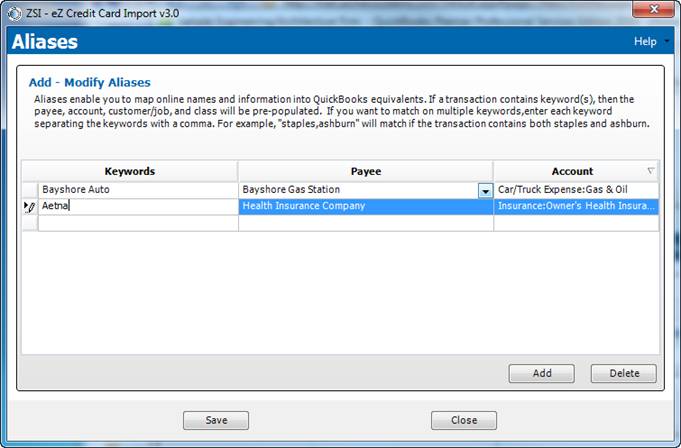
Figure 3: Aliases window
Elements of Window
The window contains the following elements:
|
Element |
Description |
|
Aliases grid |
Contains the list of aliases currently saved. Aliases in the table may be modified or deleted. |
|
Add button |
Adds a row in the Aliases Grid enabling a user to create a new alias. |
|
Delete button |
Enables user to remove an existing alias. When a user clicks Delete, a Delete Rows dialog box displays verifying the users intent to remove that alias. |
|
Save button |
Saves the changes to aliases. |
|
Close button |
Closes the Aliases window without saving changes. If the user selects Close prior to selecting Save and aliases have been added or updated, a reminder pop-up box displays. |
|
Help menu drop-down list |
Display a selection of options for specific help information. |
|
Help Home |
Opens a browser and navigates to online help for eZ Credit Card Import. |
|
About this Window |
Opens a browser and navigates to online help for the Alias window. |
|
How Do I |
Opens a browser and navigates to the “How to…” section of online help. |
|
Registration Information |
Opens the Registration window and shows details on application registration. |
|
Audit Log |
Opens the Audit Log window and displays the last 30 days of activities. |
|
About Zachary Systems |
Opens a browser and navigates to Zachary Systems Home page. |
 Associated Documentation: