The Preferences Window
The Preferences window enables the user to set some default behaviors during the review and import of transaction information.
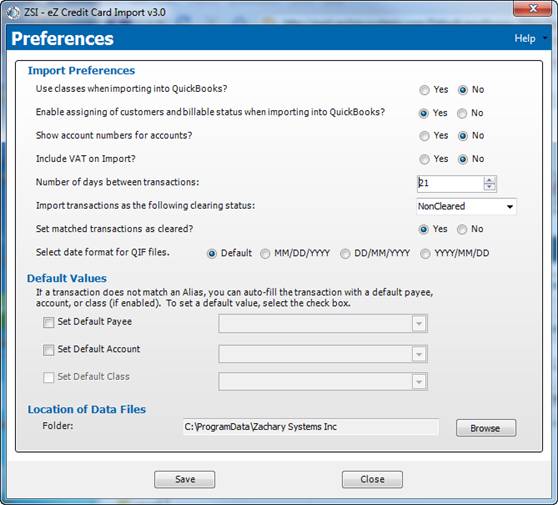
Figure 5: Preferences window
Elements of Window
The window contains the following elements:
|
Element |
Description |
|
Use classes when importing into QuickBooks? radio button |
If Yes is selected, application will enable the assignment of classes to transactions and aliases. |
|
Enable assigning of customers and billable status when importing into QuickBooks? radio button |
If Yes is selection, application will enable the assignment of customers to transactions and whether they should be billed. |
|
Show account numbers for accounts? radio buttons |
If set to yes, the account lists will display account number. |
|
Include VAT on import? radio button |
If set to yes, transactions will imported with VAT included. |
|
Number of Days between transactions: radio button |
When matching import transactions to QuickBooks entries, this is number of days allowed between transactions. |
|
Import transactions as the following clearing status radio button |
Allows the assigning of clearing status during import. The options have the following affect on register and reconciliation. Pending – Marks the transactions with asterisk in register and will be checked during reconciliation Cleared – Marks the transactions with a check mark in register and will be checked during reconciliation Nothing – Register and reconciliation processing are not affected. |
|
Set matched transactions as cleared radio button |
If set to yes, the matched transactions will have their clearing status set to the Import Clearing Status. |
|
Default date format for QIF Files radio button |
QIF files can have different date formats and this allows the application to recognize the different formats. |
|
Set Default Payee check box |
If checked and a payee is selected, any transaction which does not match an alias will be set to have this payee. |
|
Set Default Payee drop-down list |
|
|
Set Default Account check box |
If checked and a account is selected, any transaction which does not match an alias will be set to have this account. |
|
Set Default Account drop-down list |
|
|
b check list |
If checked and a class is selected, any transaction which does not match an alias will be set to have this class. |
|
Set Default Class drop-down list |
|
|
Location of Data Files field |
Allows the setting of the location of data files including preferences and aliases via the Browse button. |
|
Browse button |
Enables the user to search on the system for a location for the data files to be stored. |
|
Save button |
Will save the changes made and close the Preferences window. |
|
Close button |
Closes the Preferences window. |
|
Help menu drop-down list |
Display a selection of options for specific help information. |
|
Help Home |
Opens a browser and navigates to online help for eZ Credit Card Import. |
|
About this Window |
Opens a browser and navigates to online help for the Preferences window. |
|
How Do I |
Opens a browser and navigates to the “How to…” section of online help. |
|
Registration Information |
Opens the Registration window and shows details on application registration. |
|
Audit Log |
Opens the Audit Log window and displays the last 30 days of activities. |
|
About Zachary Systems |
Opens a browser and navigates to Zachary Systems Home page. |
 Associated Documentation: